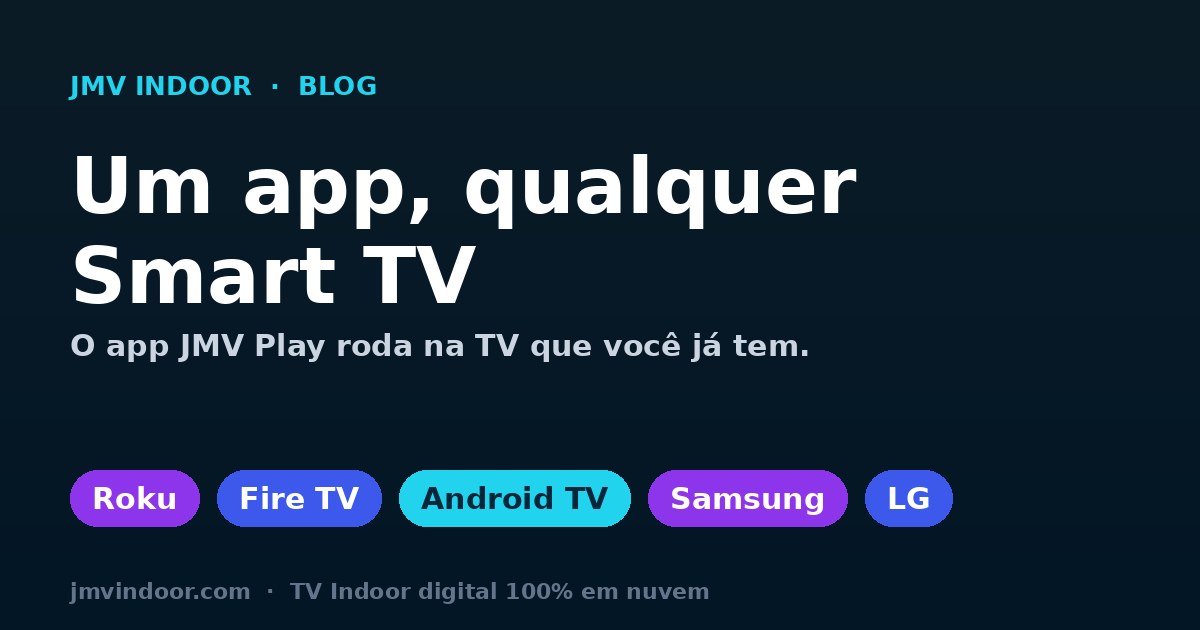
Yes, there is an indoor TV app: JMV Indoor (JMV Indoor) runs on the main Smart TVs on the market — Roku, Fire TV, Android TV, Samsung (Tizen) and Apple TV, plus some LG (webOS) models — in landscape or portrait. You don't need an expensive professional TV: you reuse the Smart TV you already have in the store. If your TV isn't smart, a Chromecast or an Android TV Box on the HDMI port solves it. The honest caveat: native app availability depends on each app store, and Roku or Fire TV may require an external device on some models. On LG, the app is under review in the store: confirm your model before you subscribe. Once you subscribe to a plan, you install the app, log in, and your live channel appears on the screen.
Is there an indoor TV app? Yes — it's called JMV Indoor
Anyone searching for "indoor TV app" almost always wants to know the same thing: do I need special equipment, or can I use a normal TV? JMV Indoor's answer is direct — there is a native app, JMV Indoor (JMV Indoor), published in the official stores of the main Smart TV platforms. It's the "player": you install it on the TV, log in with your account, and the screen starts showing your live channel (the playlist you build in the cloud).
That changes the math for retail. Indoor TV stops being a "hardware kit" and becomes an app that runs on the device you already own. No PC running at the counter, no local server, no installer — the app handles playback and management stays in the online panel, which you open even from your phone.
Where JMV Indoor runs: Roku, Fire TV, Android TV, Samsung, LG, Apple TV and Chromecast
The app is available for the main Smart TV platforms on the market, each in its own official store. In practice, if your TV is from a well-known brand of the last few years, there's a strong chance it's compatible:
| Platform | TV system | Where to download JMV Indoor |
|---|---|---|
| Android TV | Android (Sony, TCL, Philips and other TVs) | Google Play |
| Samsung | Tizen | Samsung Store |
| LG | webOS (some models) | LG Store (app under review; confirm your model before you subscribe) |
| Fire TV | Fire OS (Amazon) | Amazon Store |
| Roku | Roku OS | Roku Store |
| Apple TV / iOS | tvOS / iOS | App Store |
Beyond the TVs themselves, JMV Indoor also works via Chromecast and on an Android TV Box, which widens coverage even further: once you subscribe to a plan, just download the JMV Indoor app and access your live channel.
Use the Smart TV you already have
The most important point for the store's budget: because the app runs on these common platforms, there's no need to buy a professional digital signage panel or rent dedicated hardware. That Smart TV already sitting in reception, in the window or behind the counter can become your indoor TV screen today — as long as it's connected to the internet and can install the JMV Indoor app.
This follows the same logic that indoor TV works without an extra box when the TV itself is smart: the "computer" that plays the playlist is the app inside the TV, and the intelligence (playlist, schedule, changes) stays in the cloud. Fewer boxes under the screen, fewer points of failure, lower cost.
Regular (non-smart) TV? Chromecast or Android TV Box
What if the store's TV is an older model with no smart system? That works too. Just add a cheap device to the HDMI port:
- Chromecast — plugged into HDMI, it turns the regular TV into a connected screen where JMV Indoor plays.
- Android TV Box — a small Android device that runs the app natively; a good option for screens that stay on all day.
With that, virtually any television with HDMI and internet works as indoor TV — natively smart or plain with an accessory. And it applies to both landscape and portrait: JMV Indoor was built for landscape and portrait screens, so you can set up the vertical TV without a kiosk in windows and aisles.
The honest caveat: not every store has a native app
So the practical advice is simple: check whether JMV Indoor is in your TV's app store; if it isn't, a Chromecast or a TV Box solves it. Honesty matters here — the goal is for your screen to run reliably, not to sell a "100% native on every model" promise that no player on the market actually delivers.
Where to download, login and whether it's free
The app download is free in the stores where it is published (Google Play, Samsung Store, Amazon Store, Roku Store and the App Store; on LG, the app is under review). To display your channel, though, you need an active plan from JMV Indoor — you log in to the app with your account and the playlist scheduled in the cloud starts to run. The step by step is:
- Subscribe to a plan (or start the 30-day free trial).
- On the TV, open the app store and install JMV Indoor (or plug in a Chromecast/TV Box if the TV isn't smart).
- Log in with your account and pick the screen.
- Build and schedule the playlist through the online panel — and, if you like, use content by time and by store zone.
Once the screen is live, you can explore features like creating videos with AI from photos and serving different content by store zone. The app is just the entry point; the value is in the communication you schedule.
How to get started
The fastest path is to test with the TV you already have: start the 30-day free trial, download JMV Indoor from your TV's store (or use a Chromecast/TV Box) and log in. Within minutes the screen is showing your channel. Each plan's details are on the JMV Indoor plans page.
Questions about your TV's compatibility? Talk to us through the contact form.
A dental office reception usually solves it exactly this way, with the TV already on the wall: waiting room TV for dental offices.